Ideal Surprise – Documentation
Ideal Surprise creates door calendars for Joomla, WordPress and YOOtheme Pro: Advent calendar, Valentine’s Day, Easter, Halloween, Black Friday, contests… Each window opens on its date, with content, an optional gift and email collection with consent. This guide covers installation, creating a campaign, showing it on the site and every setting.
Quick start in 5 minutes
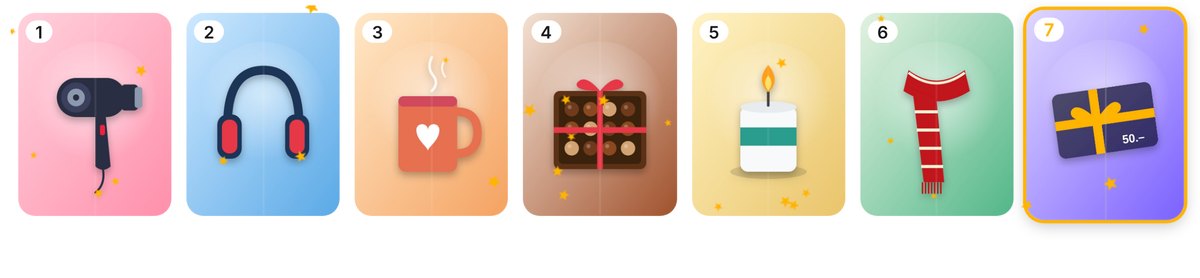
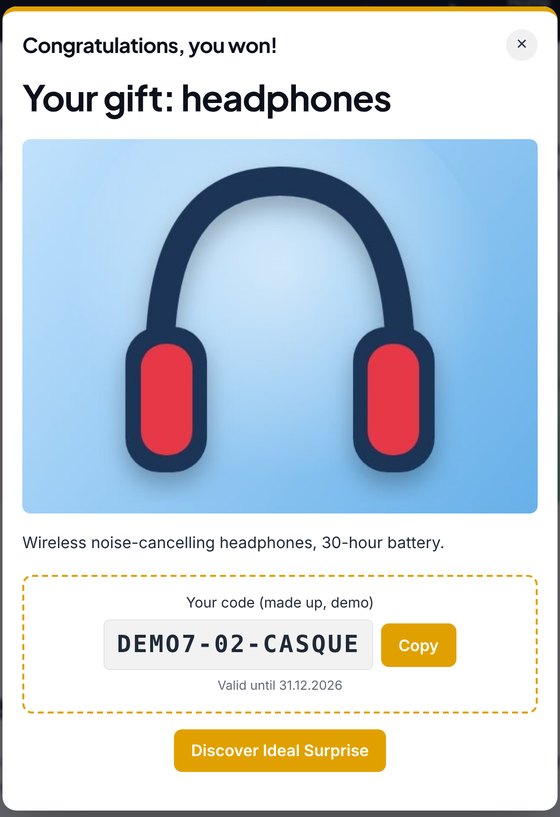
Example: a « 7 days, 7 gifts » calendar, with a photo of the prize on each door, as in the demo ↗.
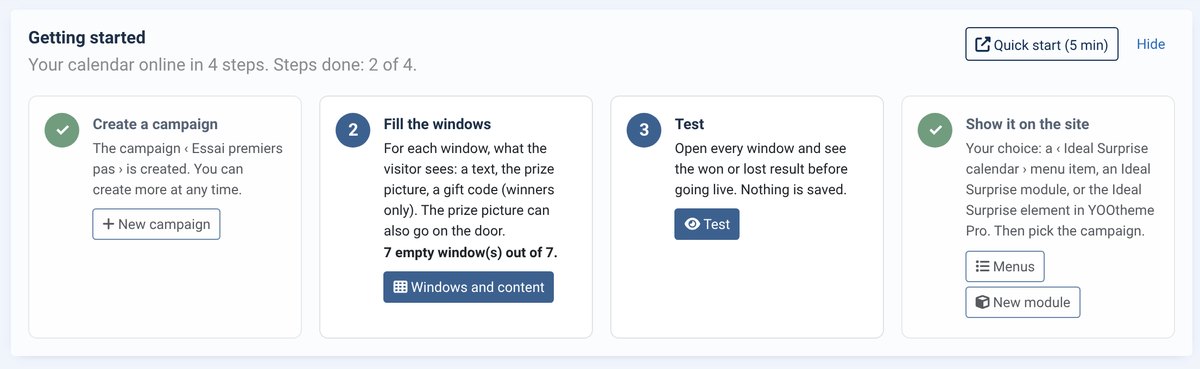
In the administrator, the Getting started box at the top of the campaign list ticks these steps as you go and shows how many windows are still empty. It disappears once everything is done.
Requirements
- Joomla 4.4, 5 or 6, PHP 8.1 or later (tested up to PHP 8.5)
- Any template: the calendar has its own style and adapts to mobile
- YOOtheme Pro 4 or 5 for the builder element (optional)
- AcyMailing for newsletter sign-up (optional)
- Email sending enabled in Joomla (Global Configuration › Server › Mail) for the emails to participants
- WordPress 6.2 or later: see WordPress version
Installation
- Download the ZIP from My licences or from the link in the order email. Do not unzip it.
- In Joomla, open System › Install › Extensions and drop the ZIP into Upload Package File.
- The package installs the Ideal Surprise component (campaigns, participants, winners), the Ideal Surprise module and the System - Ideal Surprise plugin (YOOtheme Pro element), enabled automatically. Without YOOtheme Pro this plugin does nothing and the installer says so.
- It also creates the Ideal Surprise – Managers user group (see Roles).
A new version installs the same way, over the old one: your campaigns, participants and winners are kept. The component’s About page shows what is new in each version.
Uninstall
In System › Manage › Extensions, tick only the « Ideal Surprise » package row, then Uninstall. Campaigns and participants are deleted with the component: export them first if you want to keep them.
WordPress version
Ideal Surprise is also available for WordPress, with the same campaigns, themes, windows, gifts and emails. The same licence covers both versions.
- Requirements: WordPress 6.2 or later, PHP 8.1 or later. YOOtheme Pro 4 or 5 for the builder element and AcyMailing for WordPress are optional.
- Installation: download the WordPress ZIP from « My licences », then Plugins › Add New › Upload Plugin, and activate it. The « Ideal Surprise » menu appears in the administration.
- Licence key: paste it in Ideal Surprise › About. New versions then arrive in Dashboard › Updates.
- Display the calendar: the shortcode
[ideal_surprise id="1"](the number is in the campaign list), the « Ideal Surprise » block in the editor, or the « Ideal Surprise » element in YOOtheme Pro. - Cache plugins: the calendar asks the server for its state on every visit. If WP Rocket, LiteSpeed Cache or a similar plugin delays scripts, exclude the Ideal Surprise script. The About page lists these plugins.
The rest of this guide applies as is: screens and settings have the same names. Emails are sent through WordPress mail.
Licence key and updates
Your licence key (format IDPC-XXXX-XXXX-XXXX-XXXX) is in the order email and on the My licences page. Paste it once per site:
- Open System › Update › Update Sites.
- Click Ideal Surprise: Joomla reports « missing download key ».
- Paste the key in the Download Key field, then Save & Close.
New versions then appear in System › Update › Extensions and install in one click. Updates and email support are included for 12 months. After that the extension keeps working with no time limit; only access to new versions stops. You can renew at any time from My licences.
The same key works for all your IdealPC extensions. The « Contact support » button on the About page is enabled once a valid key is saved.
Create a campaign
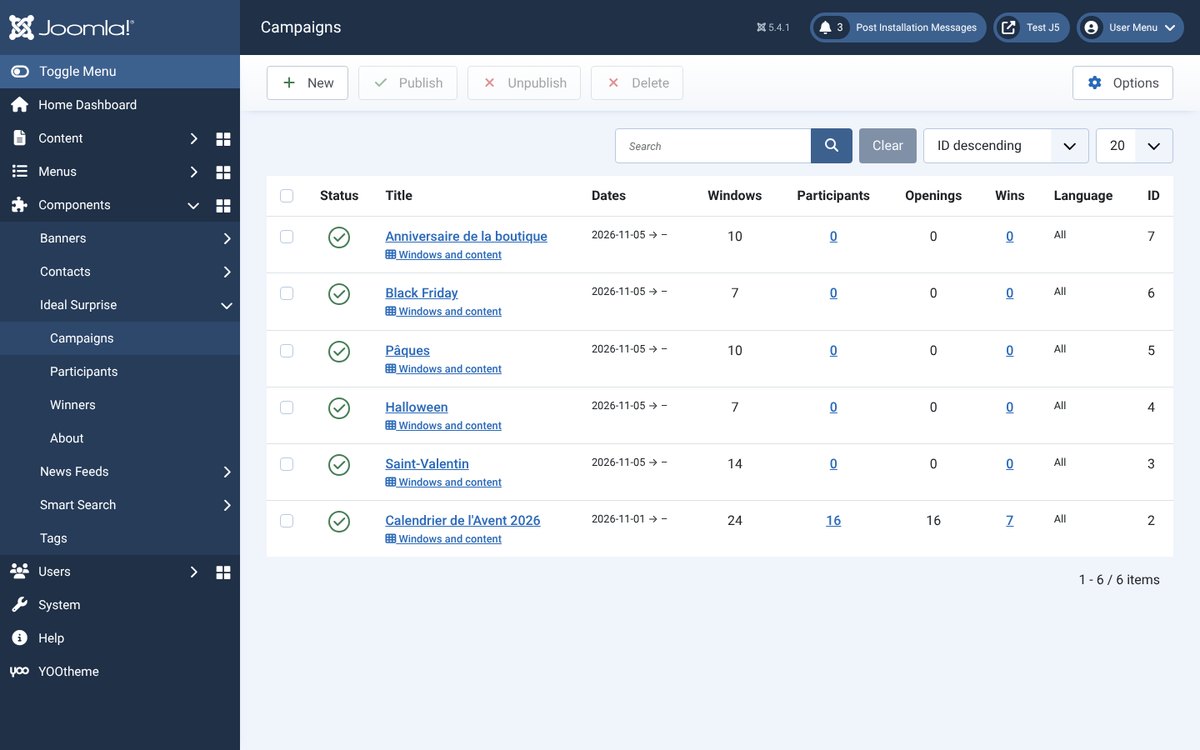
A campaign is a calendar: a title, dates, a number of windows and a design. Open Components › Ideal Surprise › Campaigns › New.
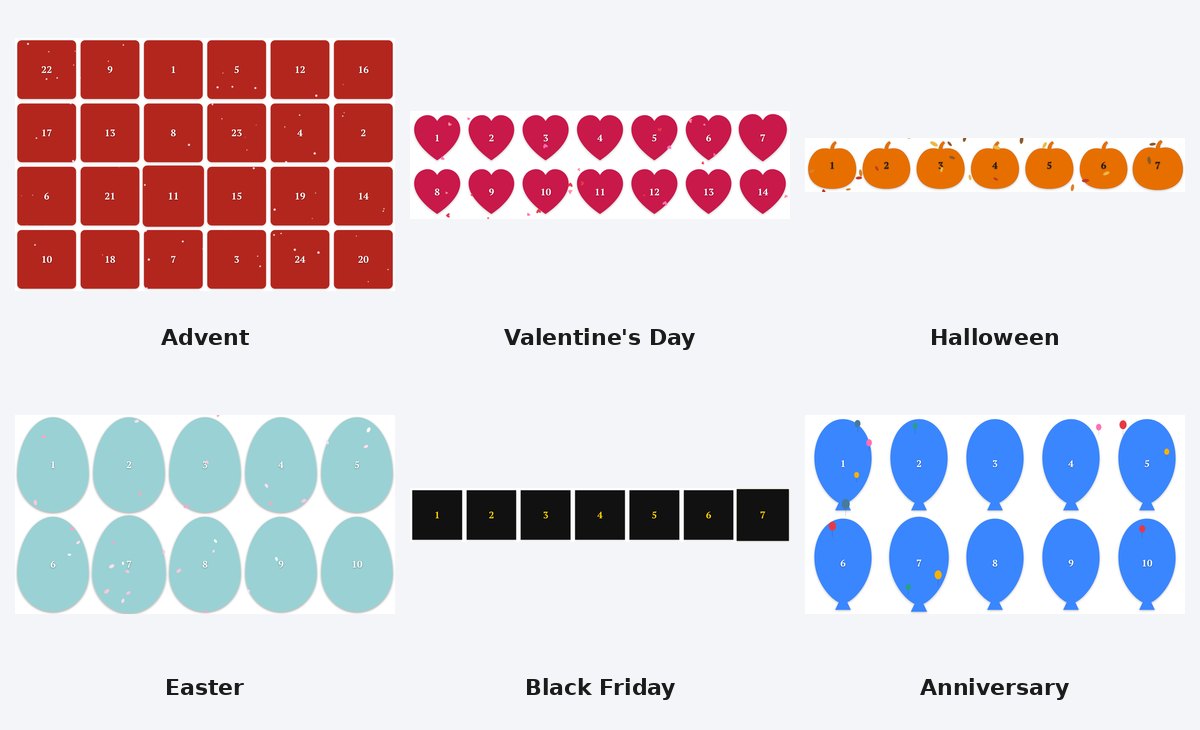
- Template / theme: pick one of the 15 themes, sorted in three groups (Christmas and year end, Through the year, Any time). The theme sets the number of windows, suggested dates, shape, colours, animated effect and texts.
- Start: the date of the first window (required). End is optional.
- Rhythm: one window a day, one window a week, or a chosen date for each window. Opening time: when the window of the day opens (site time).
- Past windows: still playable (can still win), viewable without prize, or closed.
- Save: the windows are created automatically. The Windows and content button opens the list of windows.
The themes: Advent calendar (24 days), St Nicholas, 12 days of Christmas, New Year, Valentine’s Day (14 hearts), Carnival, Easter (10 eggs), Mother’s Day, Father’s Day, Summer / sales, Back to school, Halloween (7 pumpkins), Black Friday, Shop anniversary (10 balloons) and a neutral Contest.
Apply a theme to an existing campaign: choose another theme and save. Only the design changes (shape, colours, effect); dates, windows and their content are kept.
Simulated date (test): shows the calendar as on that date, to logged-in administrators only. Handy to test a December campaign in November.
Show the calendar
Three ways, your choice:
- Menu item: Menus › New › Ideal Surprise › Ideal Surprise calendar, then pick the campaign.
- Module: Content › Site Modules › New › Ideal Surprise, pick the campaign and a position.
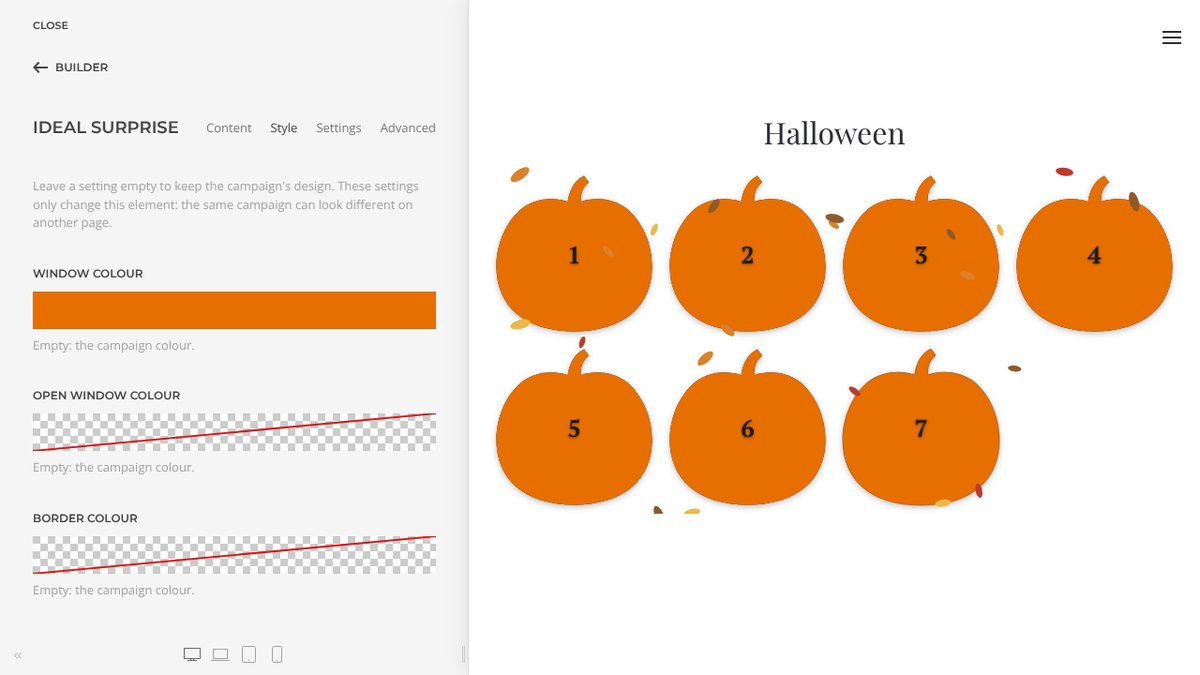
- YOOtheme Pro: in the builder, add the Ideal Surprise element (IdealPC group) and pick the campaign. The Style tab changes colours, shape, animation and effect for this element only: the same campaign can look different on another page. An empty setting keeps the campaign’s design.
On a multilingual site, create one campaign per language (Language field) or a single campaign for all languages with the Texts per language tab.
Window content
In Windows and content, click a window. Its content is a stack of blocks you add and reorder: Heading, Text, Image, Video, Button, Gift code, Unique code, Divider or Joomla article.
Each block is visible to everyone, only to winners, or only to the others (consolation message). In texts, the variables {firstname}, {code} and {door} are replaced by the first name, the code and the window number.
- Gift code: the same code for everyone (for example XMAS10), with an optional validity.
- Unique code: each winner gets a different code, taken from the Add unique codes list (one code per line, duplicates are ignored). The number of codes left is shown.
- Label: replaces the displayed number (for example « Monday »). Opening date: editable with the « chosen date » rhythm.
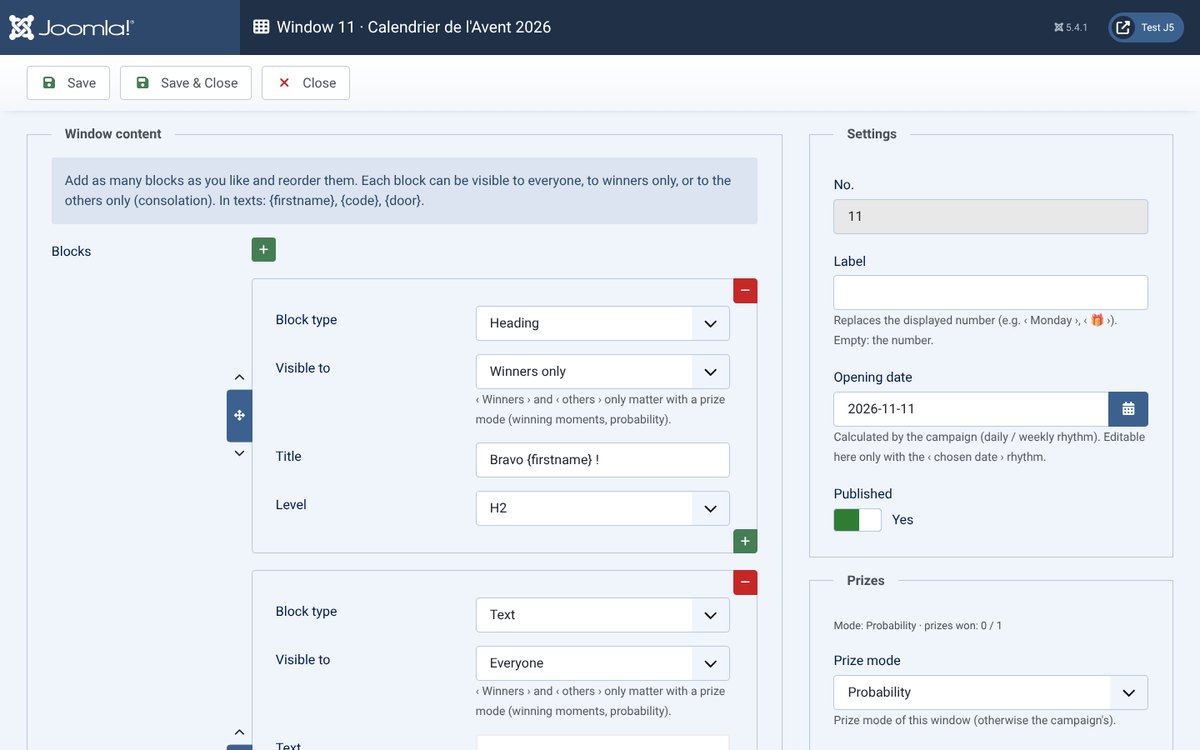
The window list shows content, date, win mode, prizes won and number of openings. Reset prizes clears openings and winners of the selected windows (useful after testing).
Test before publishing
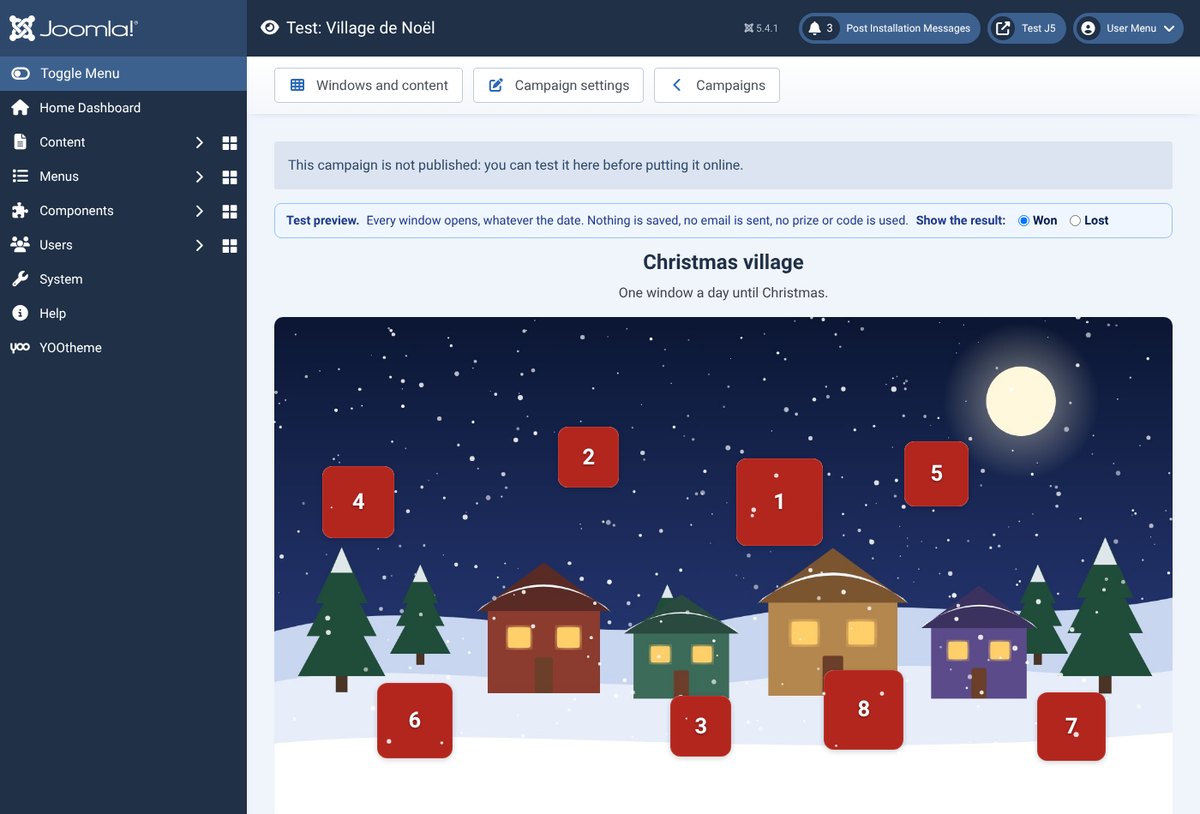
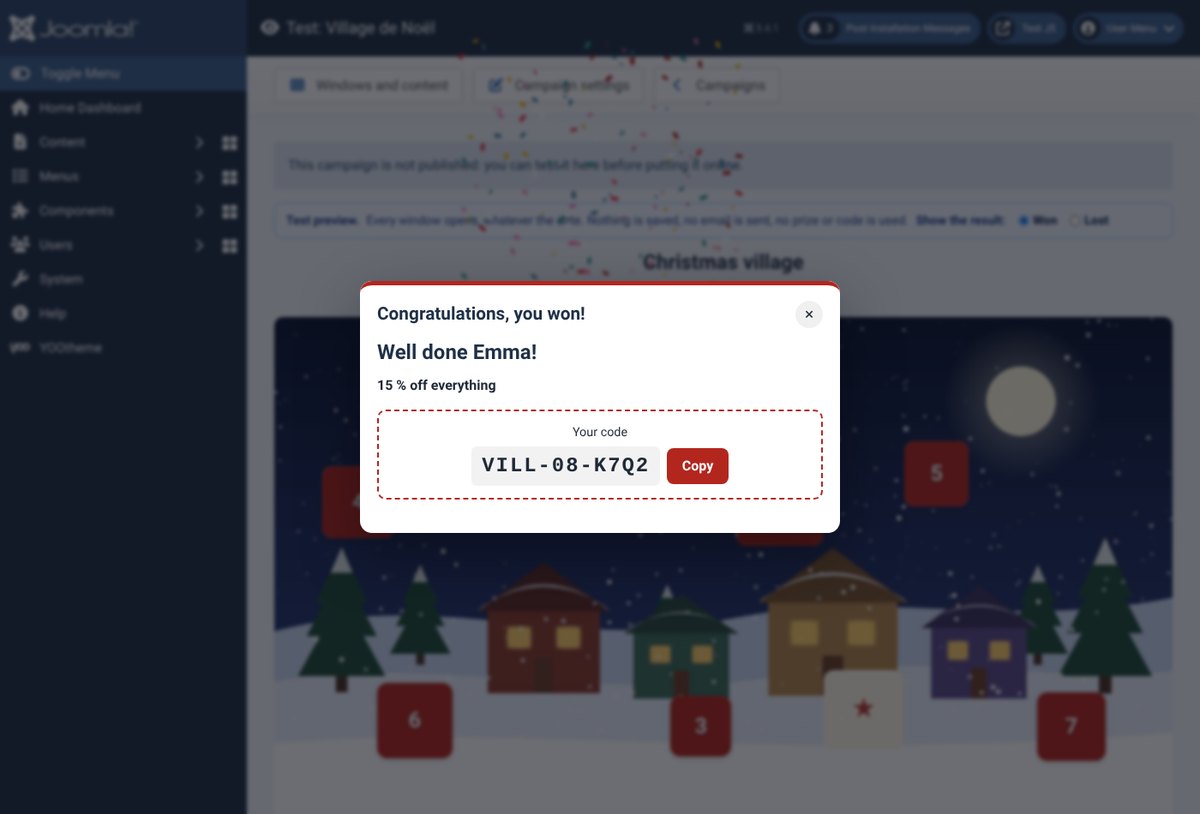
The Test button (in the campaign list, in the campaign and in Windows and content) shows the calendar as on the site, with its design, texts and background image. Every window opens, even those of the coming days, and you choose the result to show: Won or Lost. You see the exact content a winner gets (with a sample first name and code) and the consolation message.
Nothing is saved: no participant, no opening, no email sent, no prize or unique code used. The test also works with a campaign that is not published yet: prepare it, test it, then publish it.
Gifts, images and promo codes
The gift is set in each window (Windows and content › click the window), with blocks:
- Text and Image to present the prize (for example a photo of a hair dryer). Visible to Everyone to announce it, or Winners only for the surprise. The photo can also go on the door: Image of this door field.
- Gift code: the same code for every winner (for example XMAS20).
- Unique code: a different code for each winner, never given twice.
Where to put unique codes
- In the window (right column, Add unique codes): the codes are only for that window.
- In the campaign (Prizes tab, Unique code pool): paste all your codes once; every window with a ‹ Unique code › block takes one per winner, after its own codes.
Prizes follow the codes: when no code is left, there are no more winners and participants see the ‹ sold out › message, then the consolation.
Example: 5 promo codes in one window
- Add a Unique code block, visible to Winners only.
- Paste the 5 codes in Add unique codes, one per line.
- Leave Prizes per window at 0 (= as many prizes as codes) or set 5. Save: ‹ Unique codes still available: 5 ›.
- Choose Winning moments to spread the 5 prizes over the day, then check with Test.
Participation and consent
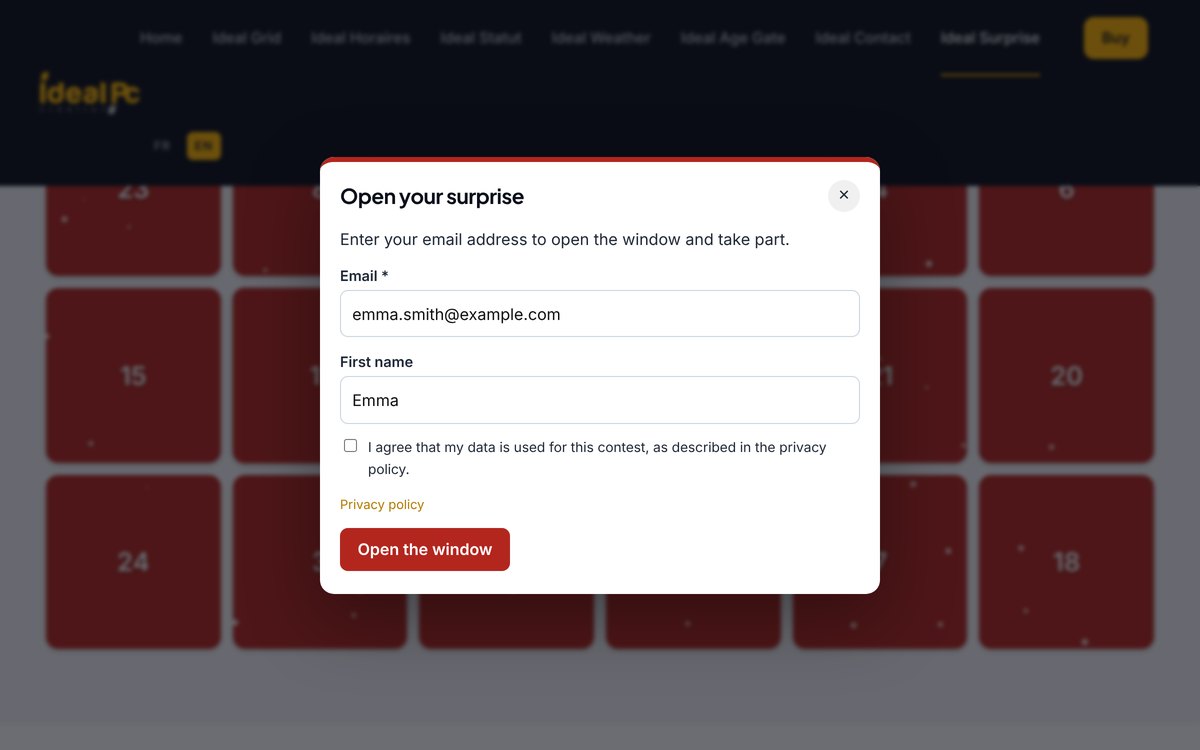
Participation tab of the campaign. Email address: when it is asked.
- Never: windows open freely (information calendar, no prizes).
- On the first opening, then visitor recognised: the visitor signs up once, then opens the next windows directly.
- For every window.
- Only to claim a prize: windows open freely, the address is asked only from winners.
The First name, Last name, Phone, Postcode / Town fields and a free question are hidden, optional or required. The consent checkbox links to your privacy policy and your rules (a site address such as /privacy-policy.html, or a full address). The accepted text and the date are stored with each participant.
Newsletter: with AcyMailing, choose the lists and the checkbox text; AcyMailing double opt-in can be enabled. Send the content by email: the participant also receives the content of the opened window.
Prizes and winners
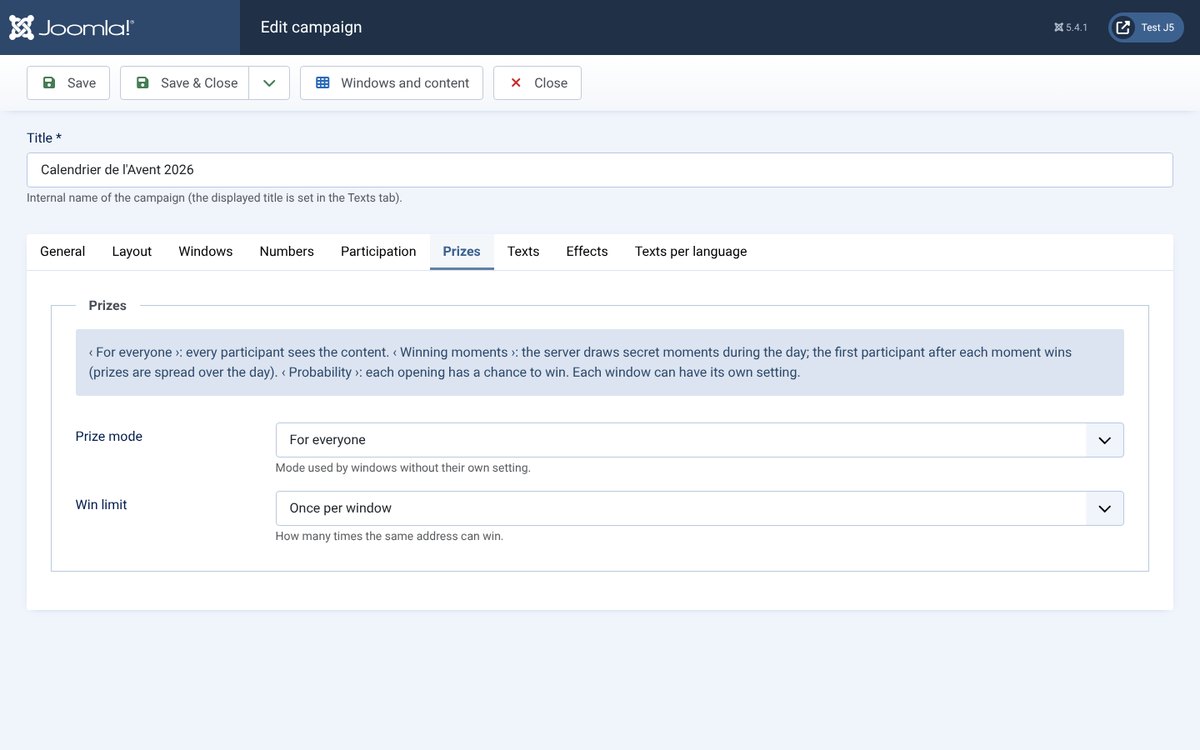
Prizes tab (campaign setting, which each window can override). Win mode:
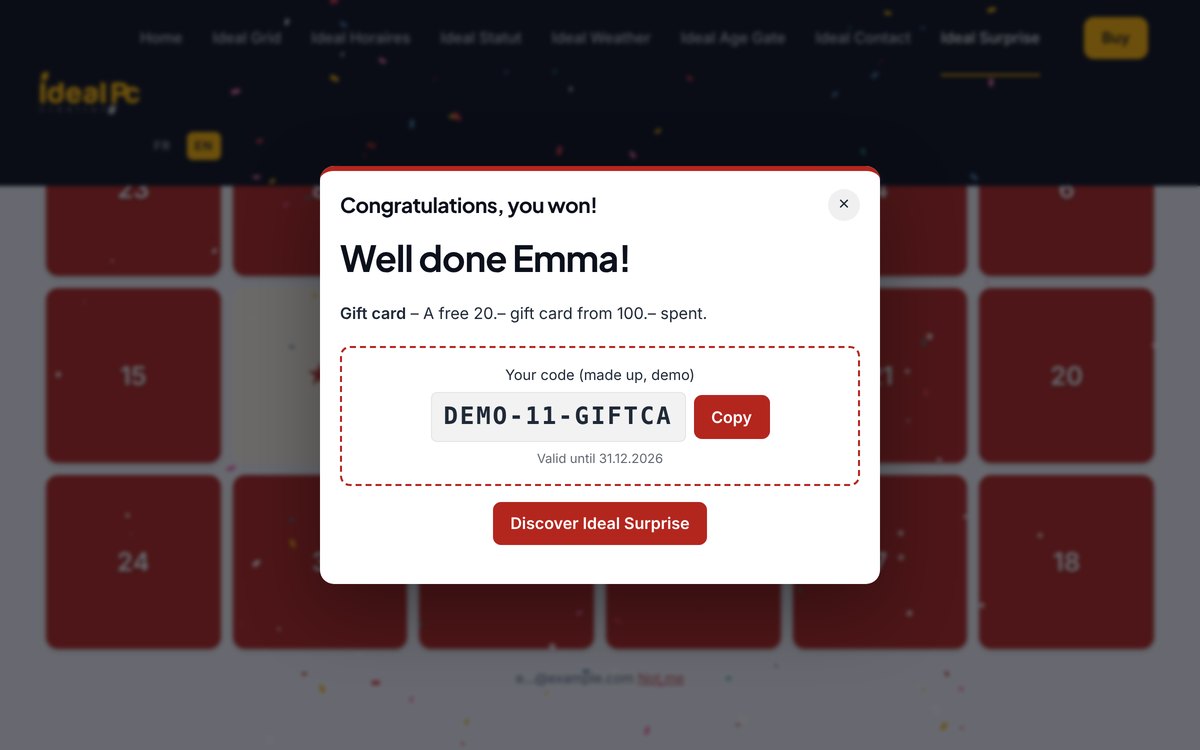
- For everyone: every participant sees the gift. No draw.
- Winning moments: the server draws secret moments in the day at random (between Winners from and Winners until); the first participant after each moment wins.
- Probability: each opening has a chance to win in % (5 = one chance in twenty).
Prizes per window: the stock of each window. Once it is used up, participants see the « sold out » message and then the consolation. 0 with « Probability »: no limit. Win limit: how many times the same address can win.
Without a « Only winners » block in a window, there is nothing to win: the window is shown to everyone and the window list says so (« No prize »).
Design
- Layout: a grid (columns on desktop, tablet and mobile, gap, cell shape, shuffled numbers, maximum width) or windows placed on an image of your choice.
- Windows: 13 shapes (rectangle, rounded corners, circle, star, heart, fir tree, gift, egg, house, pumpkin, leaf, sun, balloon), opening animation (swinging door, double door, flip, fade, zoom), hover effect, door colours or image, colour behind the door, border, accent colour, content window background.
- Numbers: format, size (also on mobile), position, font, colour, outline, shadow and background; highlight of the window of the day.
- Effects: snow, hearts, autumn leaves, petals, stars, bubbles or balloons, with their colour, and confetti.
Windows on an image
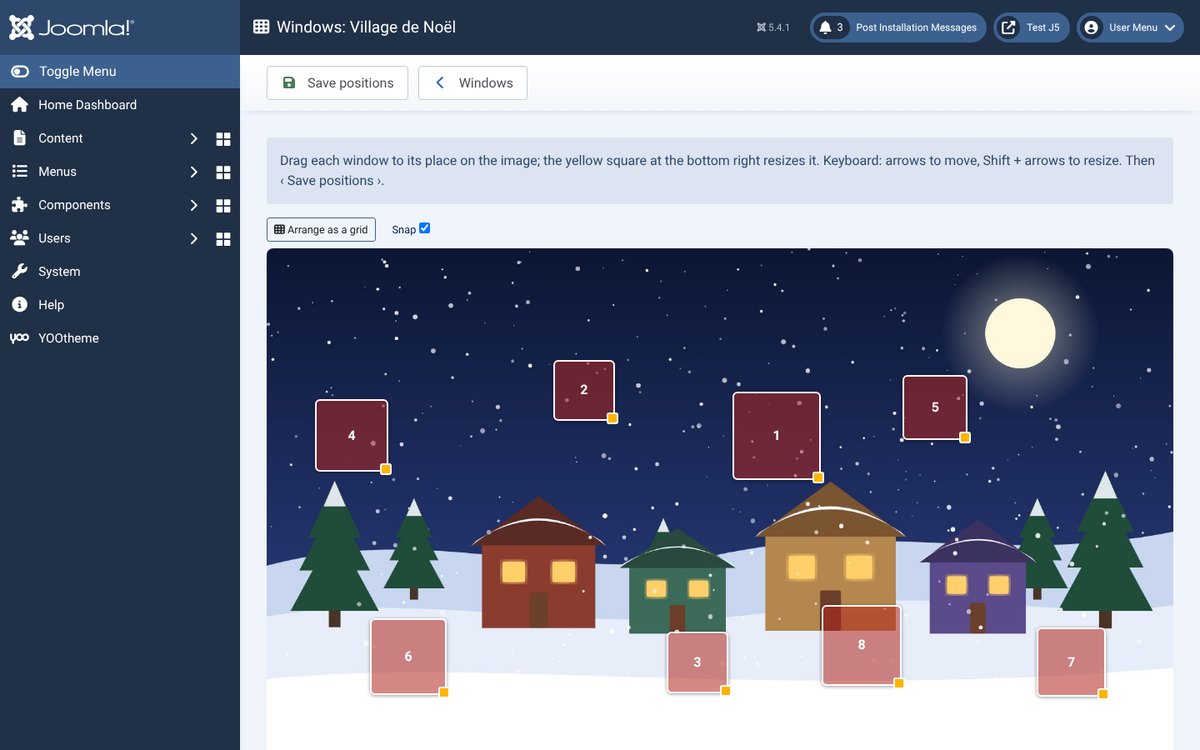
Layout tab: choose On an image, a background image and its proportions (width and height, for example 16 and 9). In Windows and content, the Place the windows button opens the image: drag each window to its place, the yellow square at the bottom right resizes it (keyboard: arrows to move, Shift + arrows to resize), then Save positions. Arrange as a grid puts all windows back in a grid; Snap aligns them on a fine grid. To use only a few windows, lower the campaign’s number of windows. Each window can have its own colour or image (Image of this door). On mobile: keep the image or switch to a grid.
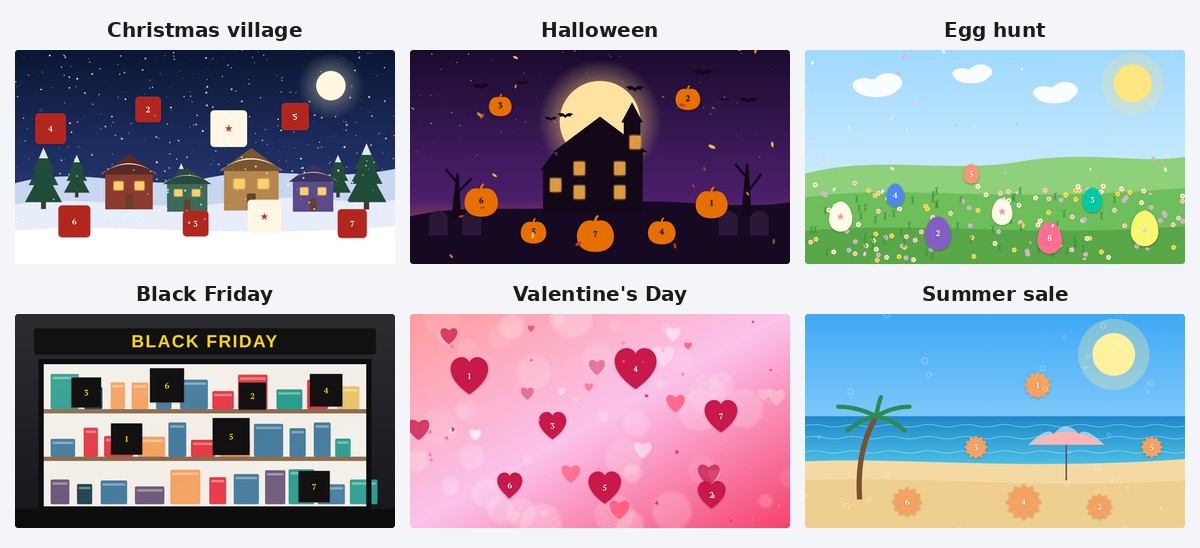
All calendar texts (title, introduction, window not open yet, form, winner, consolation, sold out…) are edited in the Texts tab, and per language in Texts per language.
Emails and notifications
All emails are set in Options (button at the top right of the component), Emails tab: sender, reply-to address, logo, accent colour and footer. Each email can be switched on or off, with its subject and text:
- Prize won: to the winner, with the gift and code.
- Participation confirmation.
- Window content (when « Send the content by email » is on in the campaign).
- « New winner » notification and « New participation » notification: to the administrator.
Notify the administrator: on every win, on every win and every new participant, on every opened window, or never. The notification addresses are set in Options; each campaign can add more (Addresses to notify for this campaign). Variables: {firstname}, {lastname}, {email}, {campaign}, {door}, {code}…
Each participant receives emails in their language: add translations in the Emails per language tab. A test-email button is on the About page.
Participants, winners and export
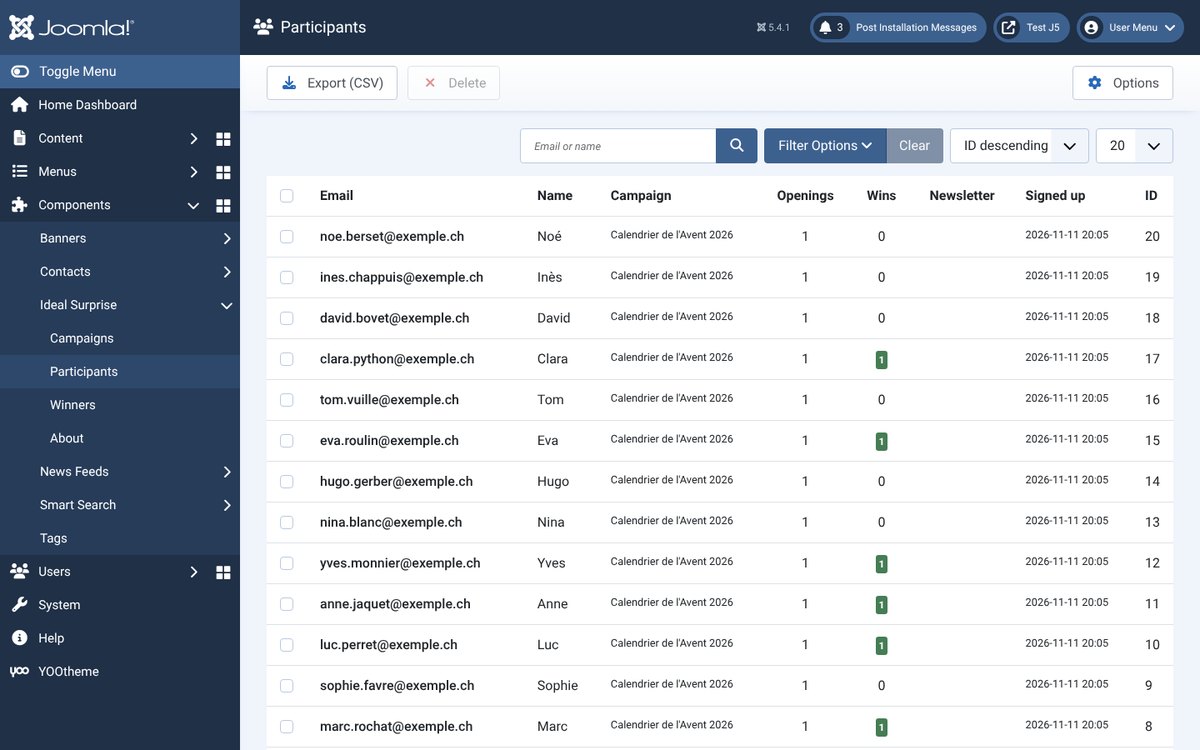
Participants: address, first name, campaign, number of openings and wins, newsletter, sign-up date. Winners: date, window and code of each win. Both lists can be filtered by campaign and exported to CSV (Excel compatible).
To answer a deletion request (right to be forgotten), tick the participant and Delete: their openings are deleted with them.
Security and anti-cheating
Options, Security tab:
- Max. openings per hour per connection and per day per address.
- One mailbox = one entry: name+1@… and name@… (and dots in a Gmail address) count as the same address.
- Blocked domains: for example disposable addresses.
The draw happens on the server: the content of a prize is never sent to the browser before the result, and two simultaneous openings cannot take the same prize.
Diagnostics and debugging
The About page contains a Diagnostics panel: YOOtheme Pro and the element plugin, published campaigns, where calendars are shown, site time, page cache, optimisers (JCH Optimize, LiteSpeed Cache…), email sending, notifications, debug mode and PHP version. Green: fine · blue: for information · orange: to check · red: to fix. The latest errors from the administrator/logs/idealsurprise.php log are shown below.
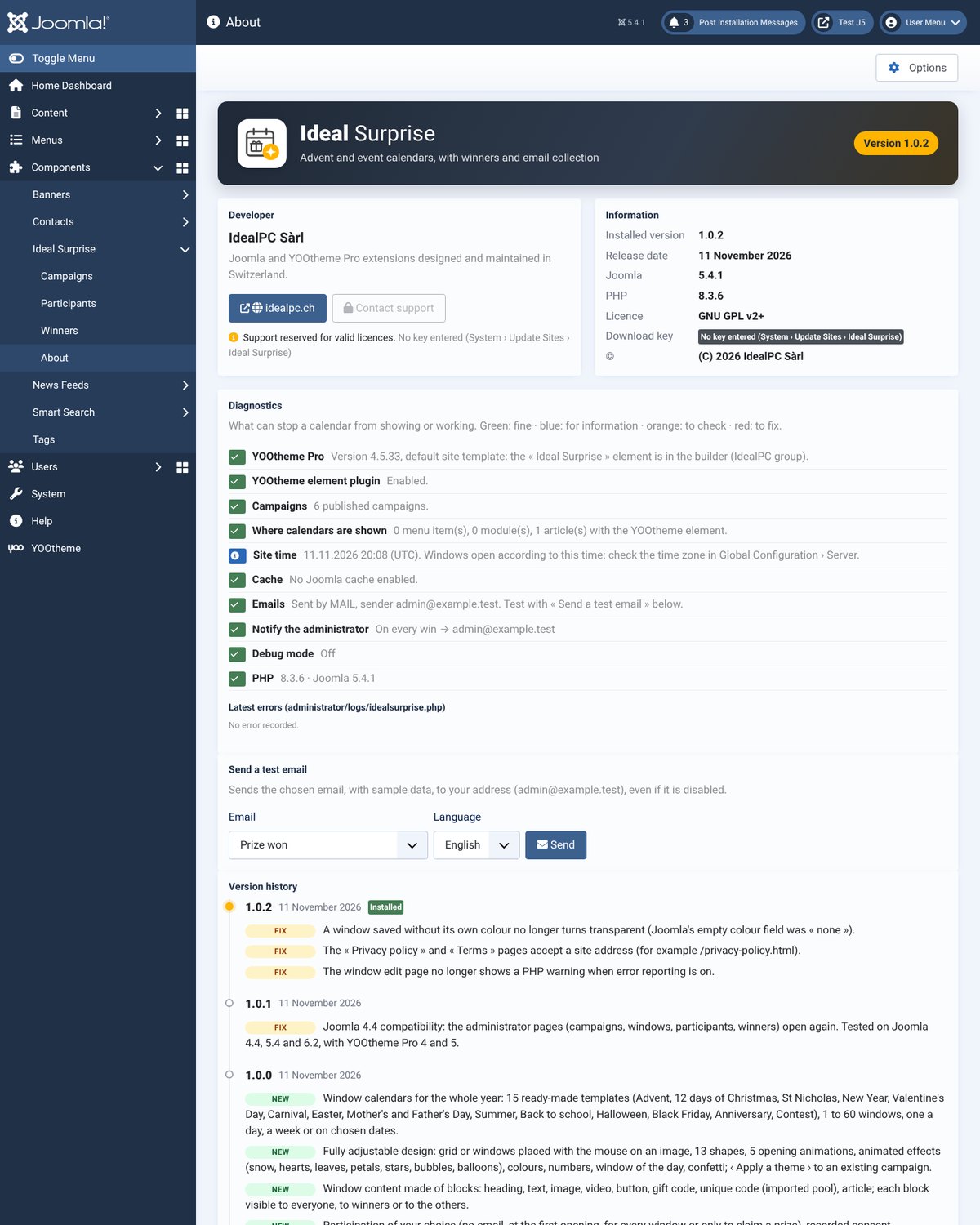
Debug mode (Options › Advanced): « Administrators logged in on the site » or « Everyone (temporary test) ». A banner above the calendar shows the campaign, server time, modes, number of windows and whether the script is loaded; the browser console details each step. If the script is not loaded, an optimiser is often delaying or combining it: exclude media/com_idealsurprise/ from the optimiser.
If the calendar does not change after an edit, clear the Joomla cache and the optimiser’s cache.
Roles and languages
The Ideal Surprise – Managers group (created on installation) can log in to the administrator and manage campaigns, windows and participants, without access to the rest of the site. Add a user to it in Users › Manage. Permissions can also be set in Options › Permissions.
The interface, calendar texts and emails come in English, French, German and Italian.