Ideal Search IA – Documentation
Ideal Search IA helps Google, Bing and AI assistants (ChatGPT, Copilot, Perplexity…) discover your site, read it correctly and quickly see what changes. This guide covers installation, every screen of the extension, the Joomla and WordPress versions and multilingual sites.
Quick start in 5 minutes
- Install the package and open Components › Ideal Search IA. The dashboard shows eleven tiles: green = in order, orange = worth improving, red = to fix. Click a tile to go to the page where you act.
- Copy the sitemap address (at the bottom of the dashboard) and add it in Google Search Console and Bing Webmaster Tools, under Sitemaps.
- In Google and Bing, paste the verification code each search engine gives you, click Test, then confirm in Google or Bing.
- In IndexNow, click Enable IndexNow: Bing will be told of every change.
- In robots.txt, choose the AI robots to block (everything is allowed by default) and click Save and apply. Then fill in the business profile under Structured data.
The Getting started guide button on the dashboard repeats these steps, and every screen has its own Help button.
Requirements
- Joomla 5 or 6, PHP 8.2 or later
- or WordPress 6.2 or later, PHP 8.1 or later
- URL rewriting recommended (otherwise the sitemap is at /index.php/sitemap.xml)
- Optional: Falang (Joomla), Polylang or WPML (WordPress) for multilingual sites, HikaShop for products, YOOtheme Pro
Installation
- Download the ZIP from My licences or from the link in the order e-mail. Do not unzip it.
- In Joomla, open System › Install › Extensions and drop the ZIP into Upload Package File.
- The package installs the Ideal Search IA component and the System - Ideal Search IA plugin, enabled automatically. The sitemap answers right away at /sitemap.xml, with no file on the server.
A new version installs the same way, over the old one: your settings, statistics and redirects are kept. If an old sitemap.xml file sits at the root of the site, the dashboard reports it and offers to delete it (a copy is kept).
WordPress version
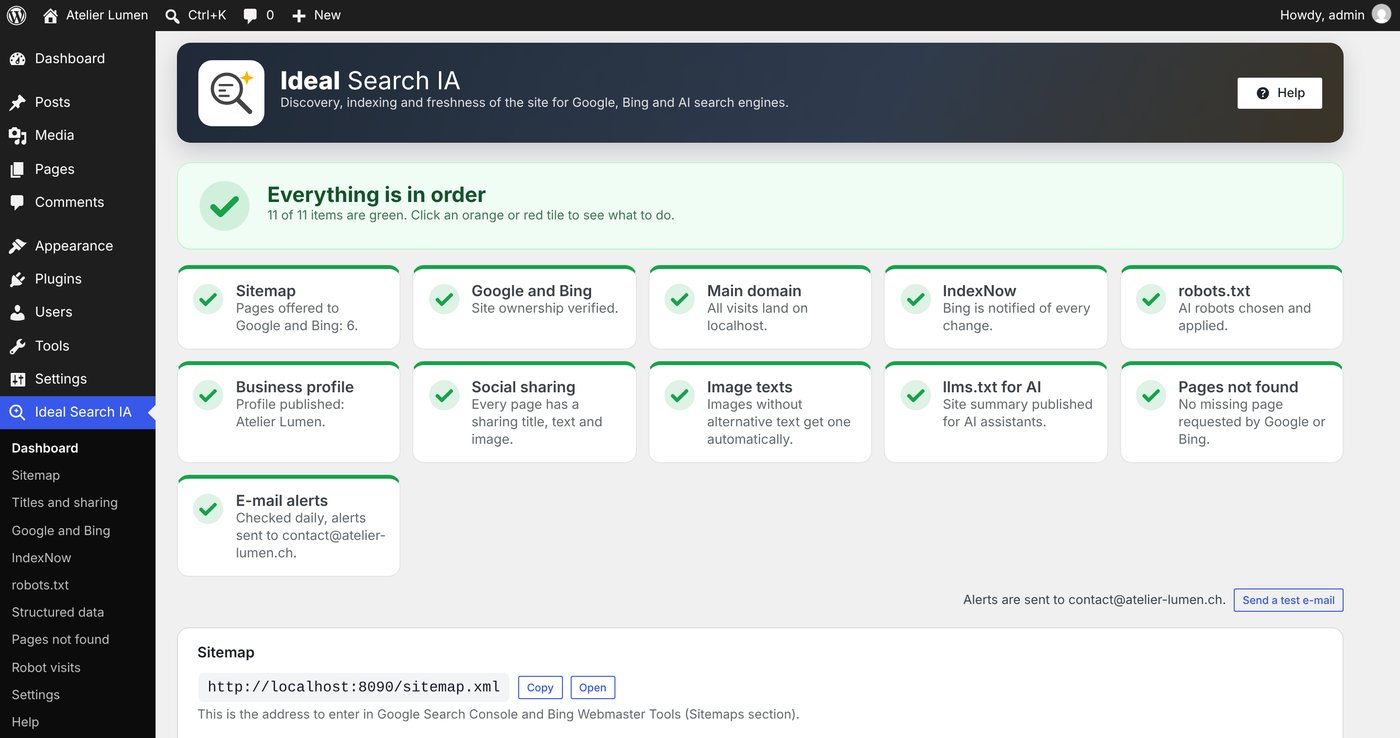
The WordPress version has the same screens, under the Ideal Search IA menu of the admin area.
- In WordPress, open Plugins › Add New › Upload Plugin, choose the WordPress ZIP and click Install Now, then Activate.
- The WordPress sitemap (wp-sitemap.xml) is replaced by /sitemap.xml; the old address is redirected to it.
- Polylang and WPML sites are recognised: each language gets its addresses and hreflang links.
- WordPress has no redirect manager: Ideal Search IA provides one for pages not found and the main domain.
If an SEO plugin (Yoast, Rank Math, SEOPress…) is active, the dashboard shows what overlaps: keep a single source for the sitemap and the sharing tags.
Licence key and updates
The extension works fully without a key. The key is used to receive new versions and to contact support.
- Joomla: open System › Update › Update Sites, click Ideal Search IA and paste the key in Download Key. New versions then appear in System › Update › Extensions.
- WordPress: paste the key in Ideal Search IA › About. Updates arrive in Dashboard › Updates.
The same key works for both versions. You can find it in My licences.
Dashboard
Eleven checks, each in a tile: sitemap, Google and Bing, main domain, IndexNow, robots.txt, business profile, social sharing, image texts, llms.txt, pages not found and e-mail alerts. At the top, the summary (“Everything is in order”, “Almost everything is in order”…). Below the tiles, Details and tips explains each orange or red item, then the Sitemap block gives the address to copy, the date of the last build and the figures: URLs, real dates, images, pages with hreflang and items left out.
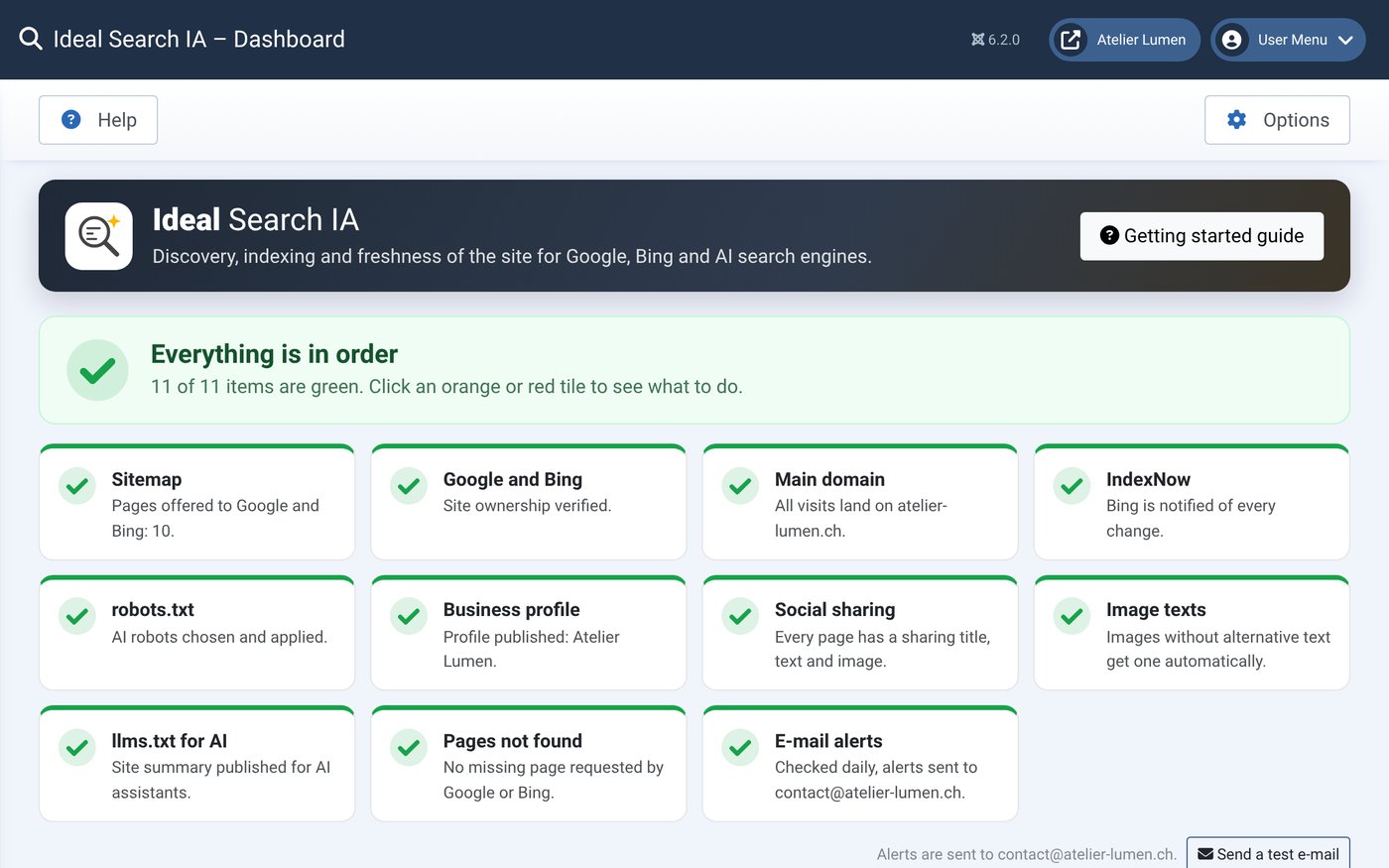
The Test the public address button opens the sitemap from outside, as Google will: it detects a firewall, a cache or a redirect that would block it.
Sitemap
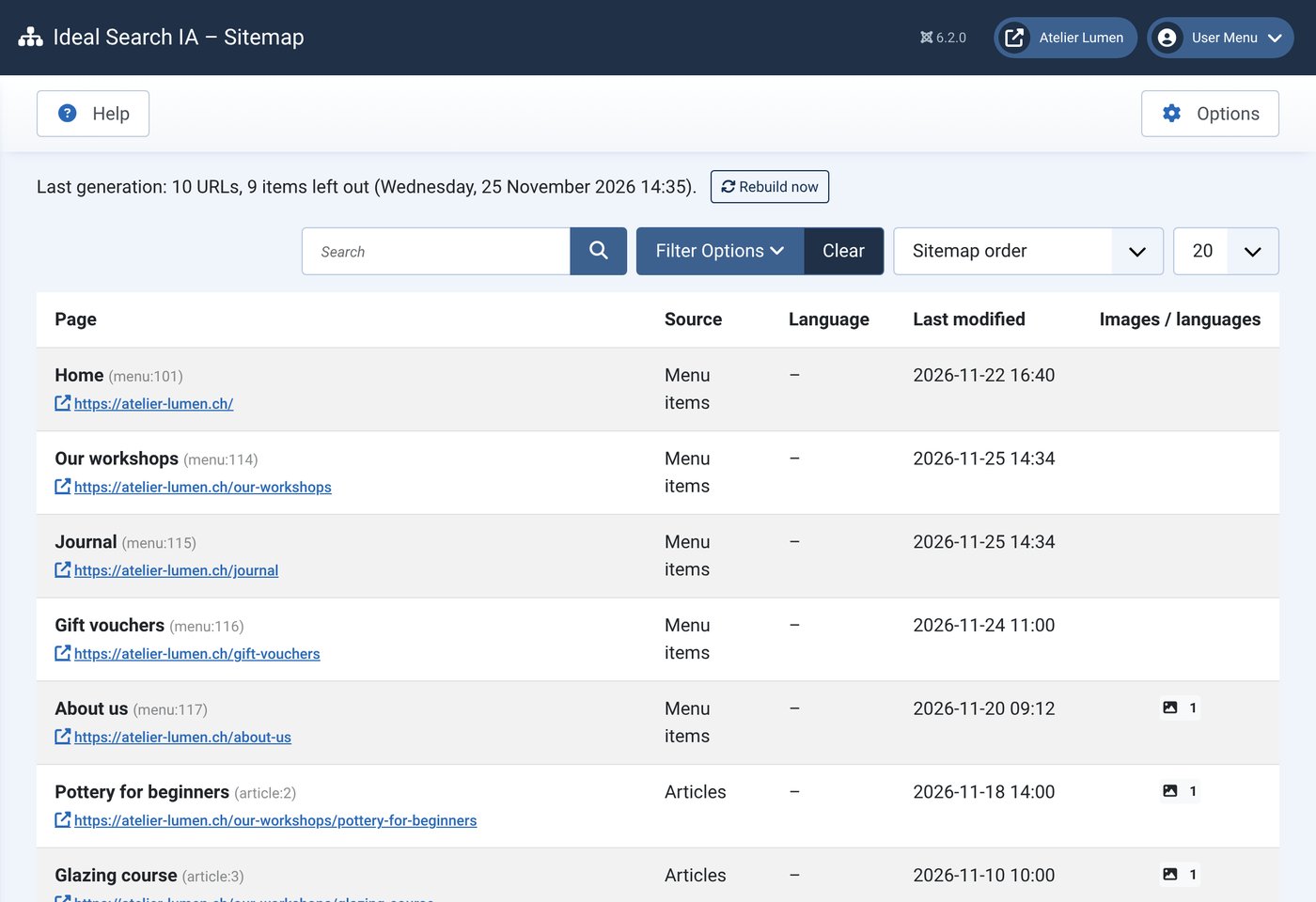
The sitemap is served at /sitemap.xml and rebuilt automatically after each content change. It brings together menu items, articles, categories, contacts and HikaShop products, with the real last-modified date and the images. On a large site it automatically becomes an index of several files.
A page only enters the sitemap if a visitor who is not logged in can see it: unpublished, scheduled, expired, members-only and “noindex” pages are left out, as are pages without their own address (no menu leads to them), technical pages (login, cart…) and pages excluded in the Options. The Sitemap page lists every address with its source, language, date and images, and the Exclusions filter shows every page left out with its reason.
In Options › Sitemap: sources, images, one file per source, hreflang links, menus taken into account, excluded menu items and categories, extra addresses (pages that do not come from Joomla) and https addresses.
Google and Bing
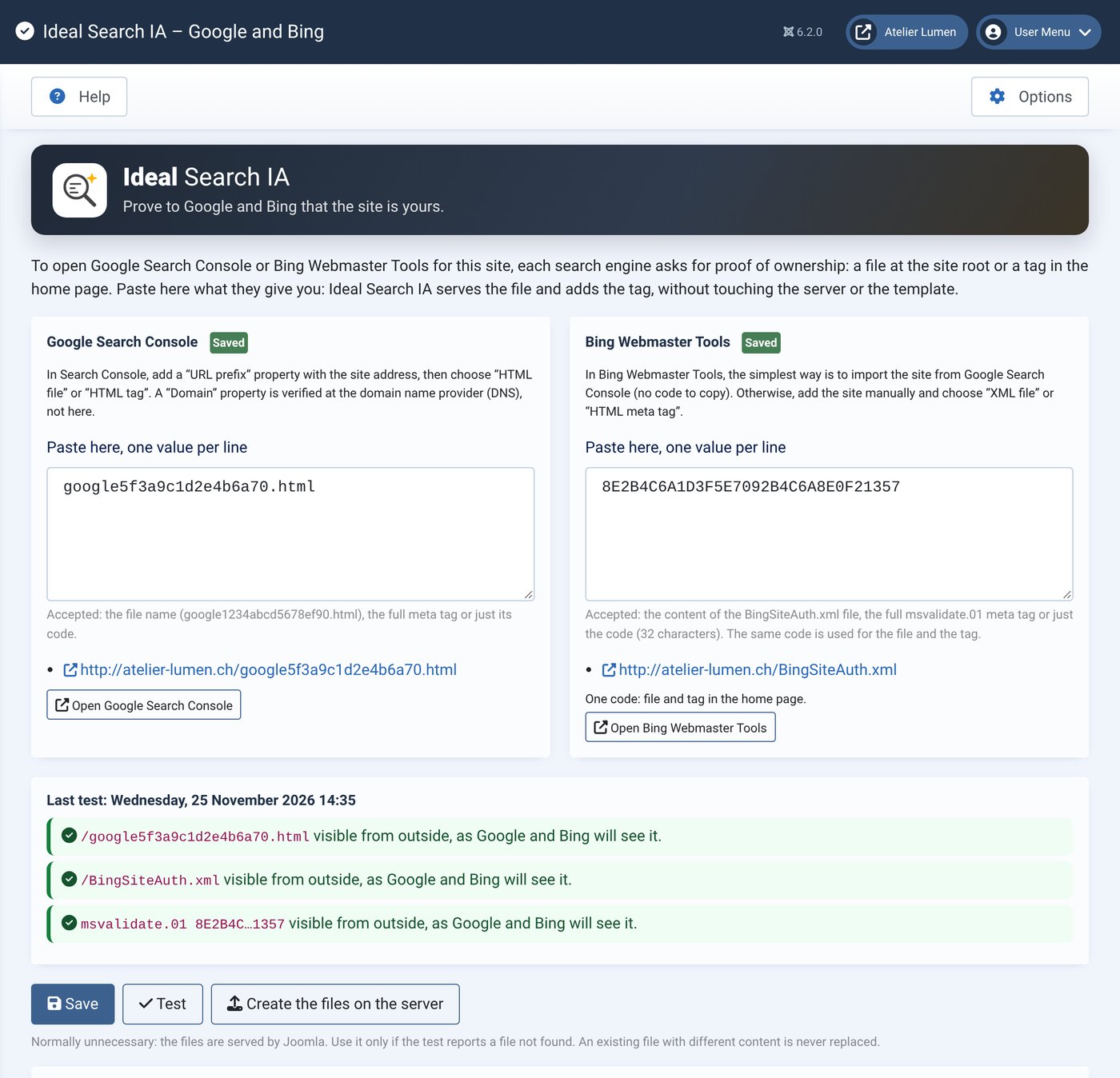
To open Google Search Console or Bing Webmaster Tools, each search engine asks for proof that the site is yours: a file at the root or a tag on the home page. Just paste what they give you (file name, full tag or the code alone): Ideal Search IA serves the file and adds the tag, without touching the server or the template. Click Test to check from outside, then “Verify” in Google or Bing.
Main domain
If other domains show the same site (alias at the host, old name, with or without www), enter the main domain and the domains to redirect. Visits are redirected (301) page by page, by Joomla or by the .htaccess file on an Apache server. Only the listed domains are redirected: a copy of the site elsewhere (development site) is never affected.
IndexNow
Without a signal, a search engine finds a changed page on its next visit, sometimes weeks later. With IndexNow, Bing (whose index also feeds Copilot and other assistants), Yandex, Seznam and Naver are told within a minute. Google does not use IndexNow: it keeps reading the sitemap.
Click Enable IndexNow: a key is created and served by Joomla, nothing to put on the server. Then, each time the sitemap is rebuilt, new, changed or removed pages are sent in a single request. The log shows the latest submissions and their result. Send the whole sitemap is for one-time use, at go-live or after a redesign.
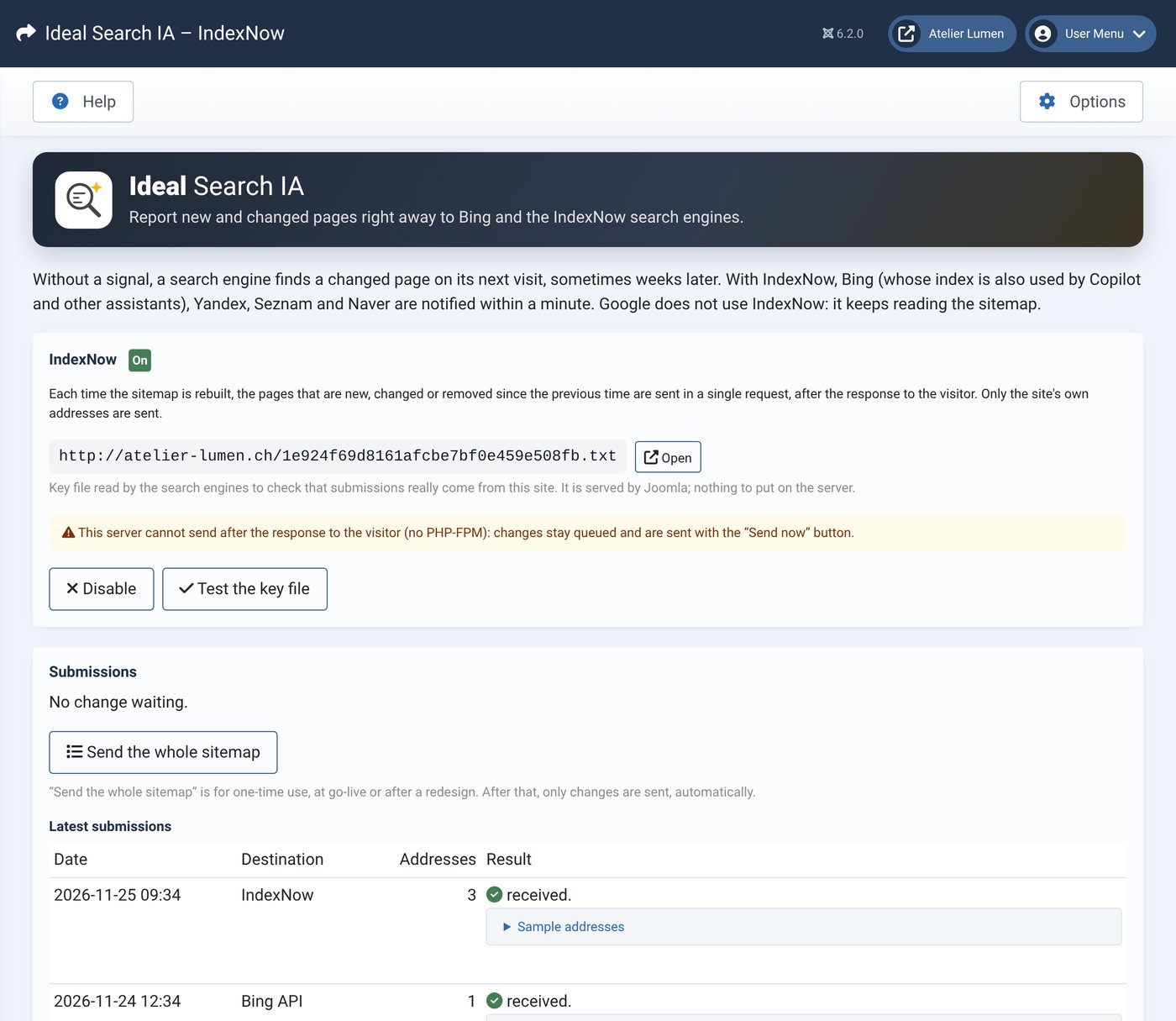
Optional: the Bing Webmaster Tools API key (Settings › API access) also lets you submit through Bing’s API, within its daily quota. It is encrypted in the database and never shown again.
robots.txt and AI robots
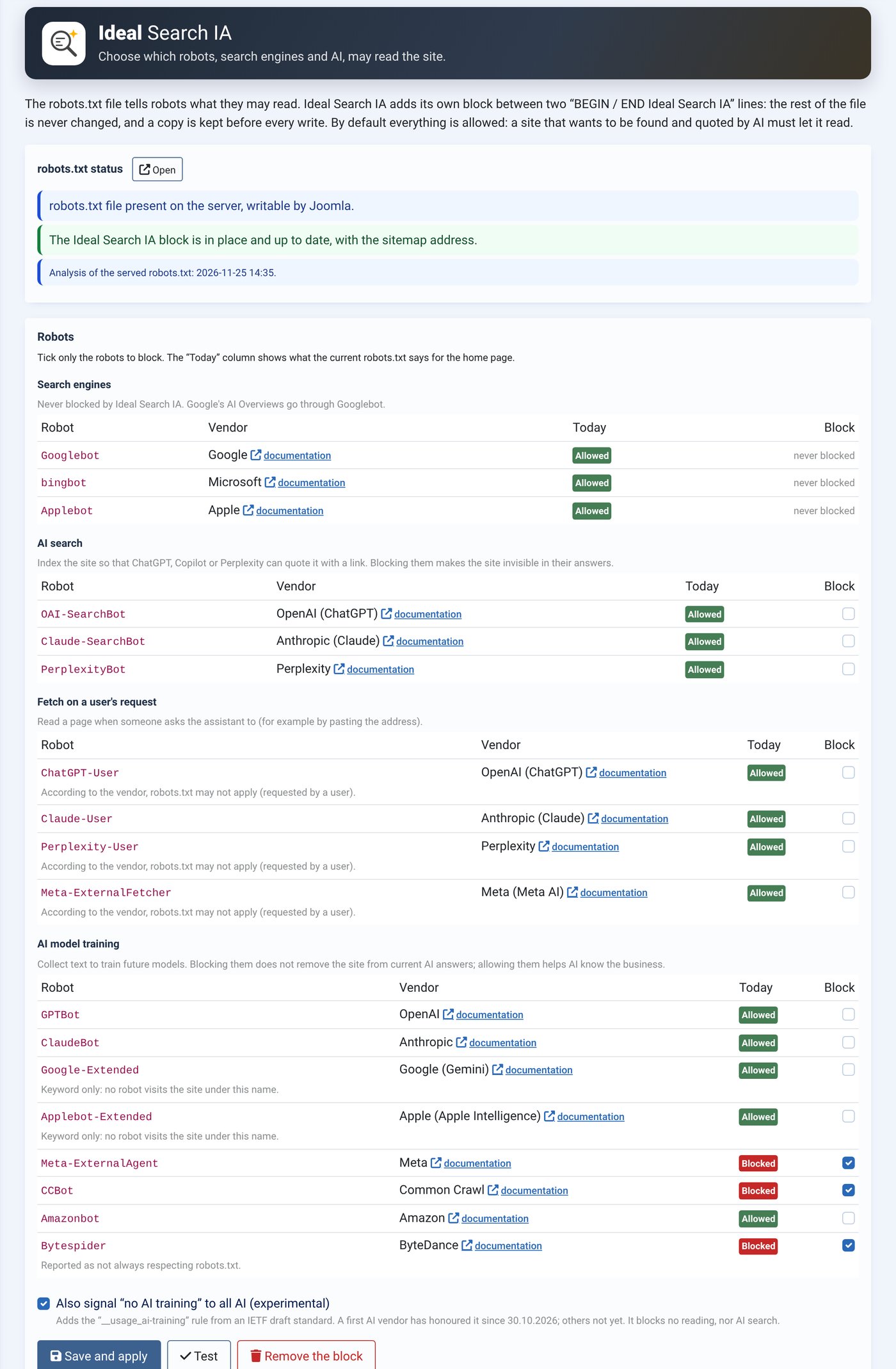
The robots.txt file tells robots what they may read. Ideal Search IA adds its own block between two “BEGIN / END Ideal Search IA” lines: the rest of the file is never changed and a copy is kept before every write. With no file on the server, robots.txt is served by Joomla.
Robots are grouped in four families:
- Search engines (Googlebot, Bingbot, Applebot): never blocked. Google’s AI Overviews go through Googlebot.
- AI search (OAI-SearchBot, Claude-SearchBot, PerplexityBot): they let ChatGPT, Claude or Perplexity quote the site with a link. Blocking them makes the site invisible in their answers.
- Fetch on a user’s request (ChatGPT-User, Claude-User…): read a page when someone asks the assistant to.
- AI model training (GPTBot, ClaudeBot, Google-Extended, CCBot, Bytespider…): collect text to train future models. Blocking them does not remove the site from current answers.
Tick the robots to block, then Save and apply. The “Today” column shows what the current robots.txt says. The sitemap address is added to the file, and previous versions can be restored.
Titles and sharing
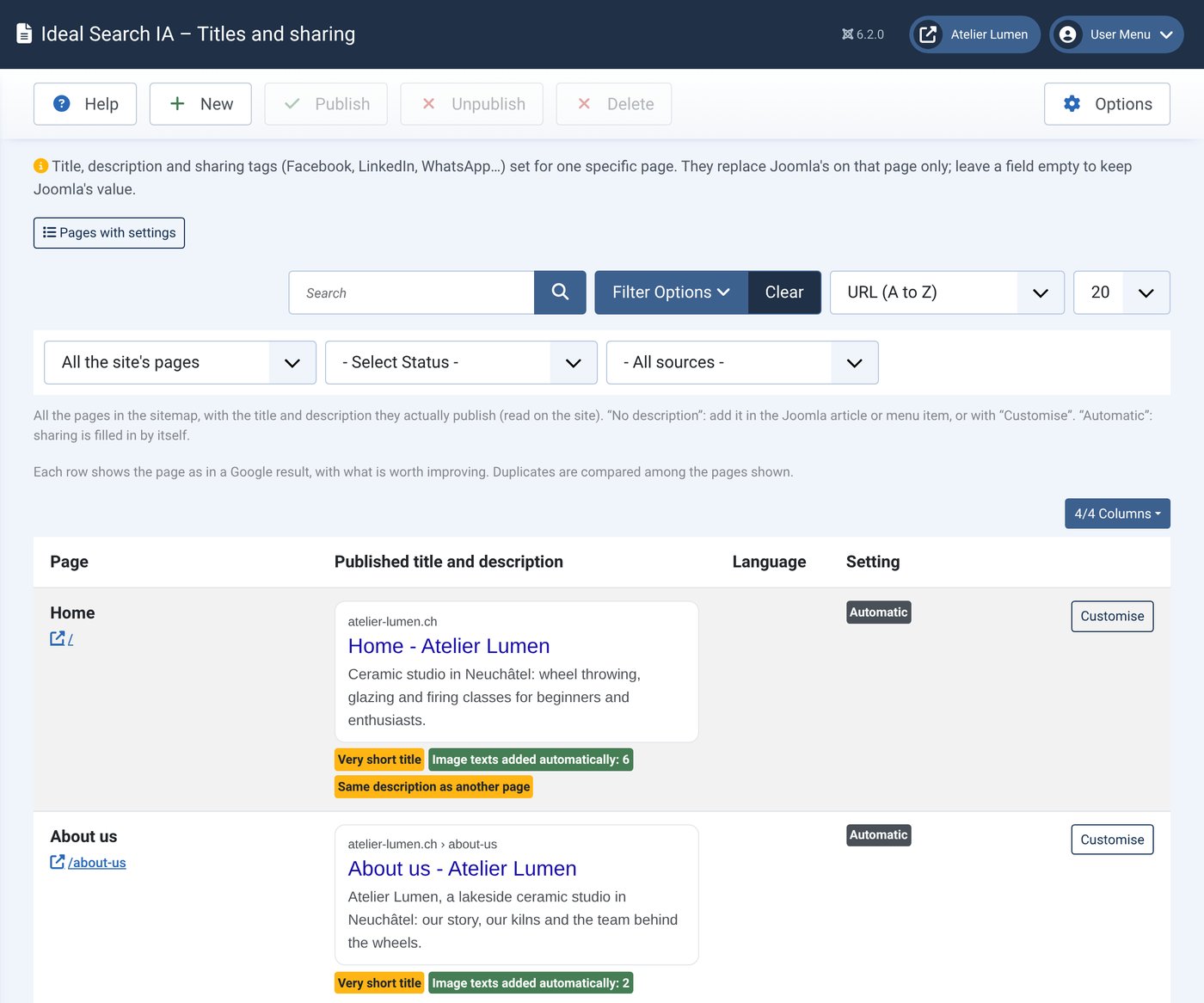
The All the site’s pages filter shows every sitemap page as in a Google result, with the title and description it really publishes. Markers point out what is worth improving: very short or too long title, no description, duplicate description, image texts added automatically.
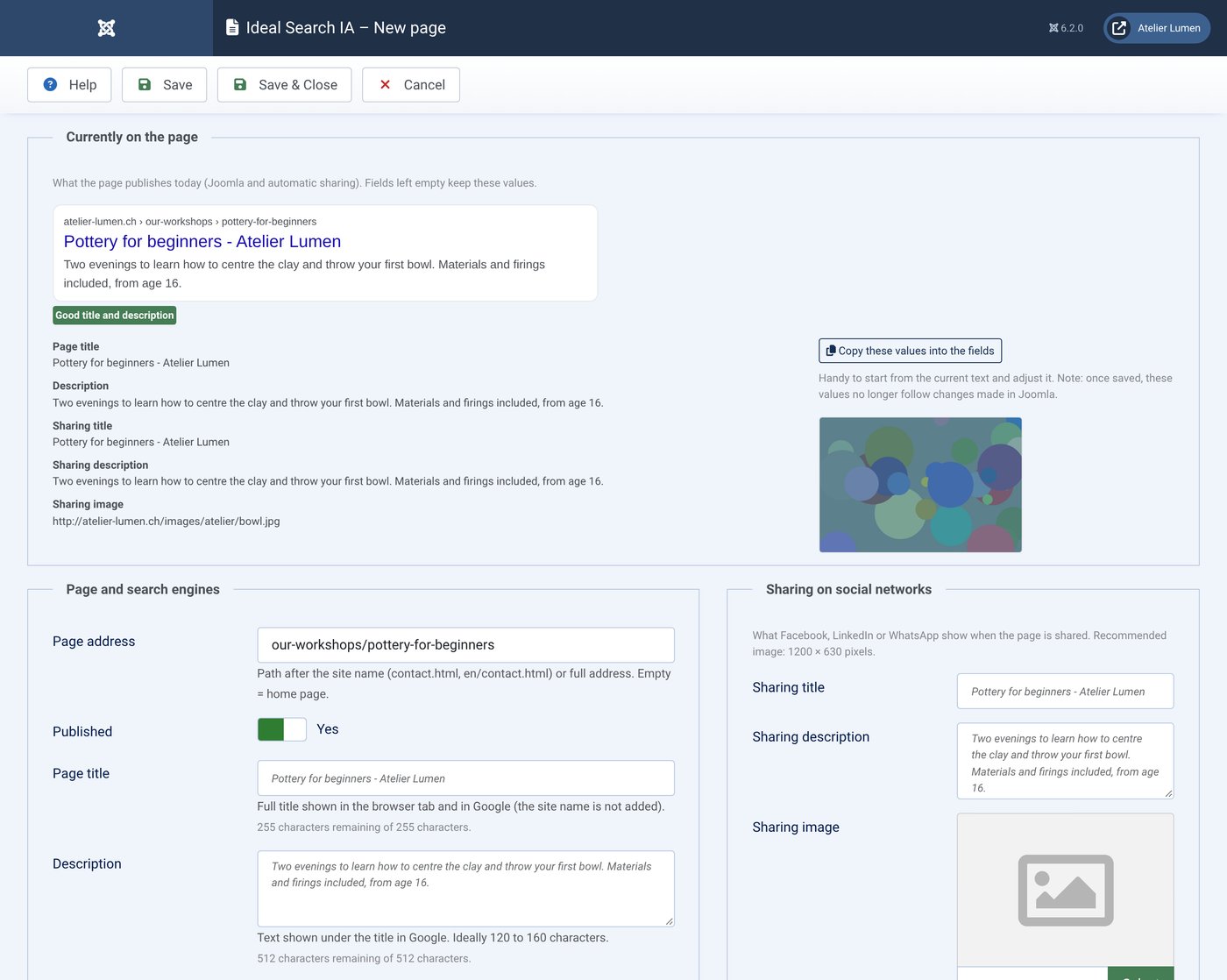
The Customise button opens a page with the Google preview, what the page publishes today, and the fields to replace: title, description, robots, canonical address and, for sharing (Facebook, LinkedIn, WhatsApp), title, description and image. A field left empty keeps Joomla’s value. The preview updates as you type.
Automatic sharing
Pages without settings still get their sharing tags: title, description, address and image (article image, otherwise the first large image of the page, otherwise the default image, otherwise the business profile logo). Nothing is added if another extension already provides these tags. Settings in Options › Sharing.
Image texts
Images without alternative text get one, taken from their title, otherwise the file name, otherwise the page title. Your articles are not changed: only what is sent to visitors and robots is completed. Decorative images and icons are left as they are.
Structured data and llms.txt
Structured data (schema.org, JSON-LD format) gives search engines and AI reliable information about the business, invisible to visitors. Before turning anything on, click Find what exists: Ideal Search IA analyses the home page and an inner page and reports what the template, Joomla’s Schema.org plugin or another extension already publish, to avoid duplicates.
- Business profile: type of business, name, description, logo, phone, e-mail, address and coordinates, opening hours, founding date, company number, areas served, services with starting prices, official profiles (Facebook, Instagram, LinkedIn…). It can replace the generic entry of Joomla’s Schema.org plugin.
- Site name (WebSite block) and structured breadcrumb, if the template does not already provide them.
- llms.txt (experimental): a site summary for AI assistants, built from the sitemap and the chosen menus, with an introduction text.
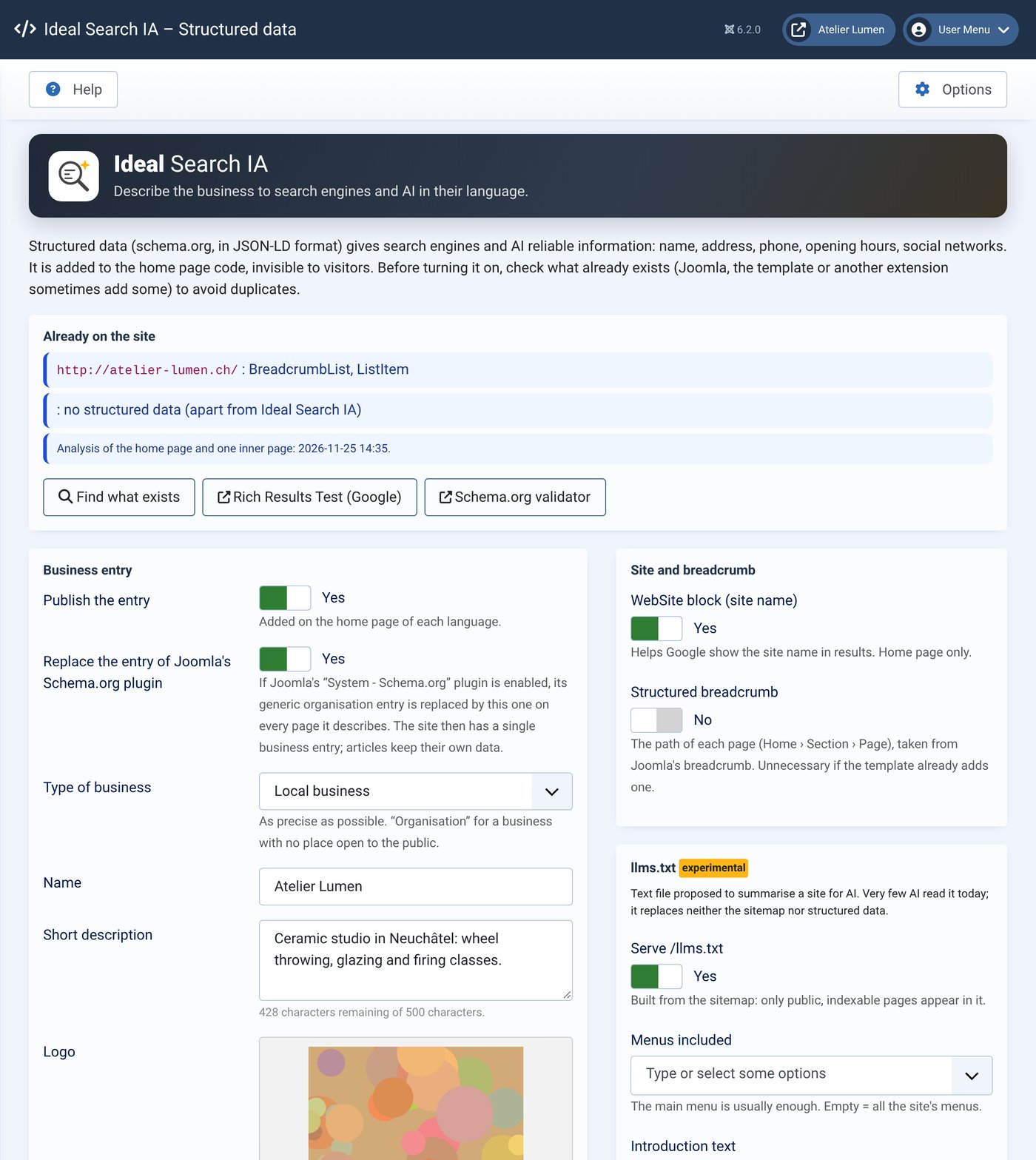
The home page JSON-LD preview is shown on the right. Links to Google’s Rich Results Test and the schema.org validator let you check the result.
Pages not found
An old address still known to search engines loses visits. Ideal Search IA records the addresses requested by Google, Bing or AI robots that no longer exist (attack attempts, .php files, wp-admin…, are filtered out), with the number of requests and the last visit.
For each one, start typing: sitemap pages are suggested. Redirect creates a 301 redirect in Joomla’s Redirects component (the “System - Redirect” plugin must be enabled; a button enables it). Ignore removes the address from the list.
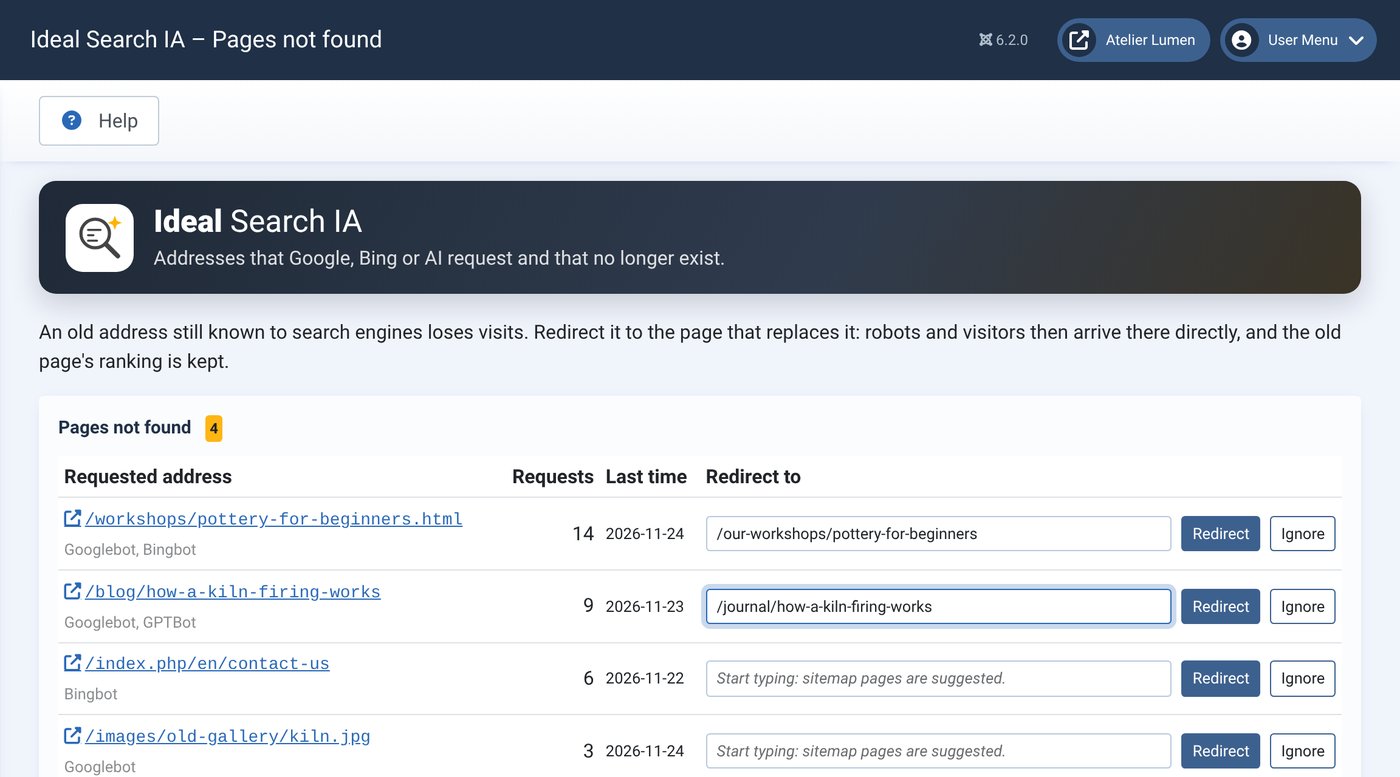
Robot visits
Which robots read the site, and which pages? The chart shows visits per month, in four families (search engines, AI search, fetch on a user’s request, model training). The tables detail each robot (visits, errors, sitemap reads) and the pages most read by AI.
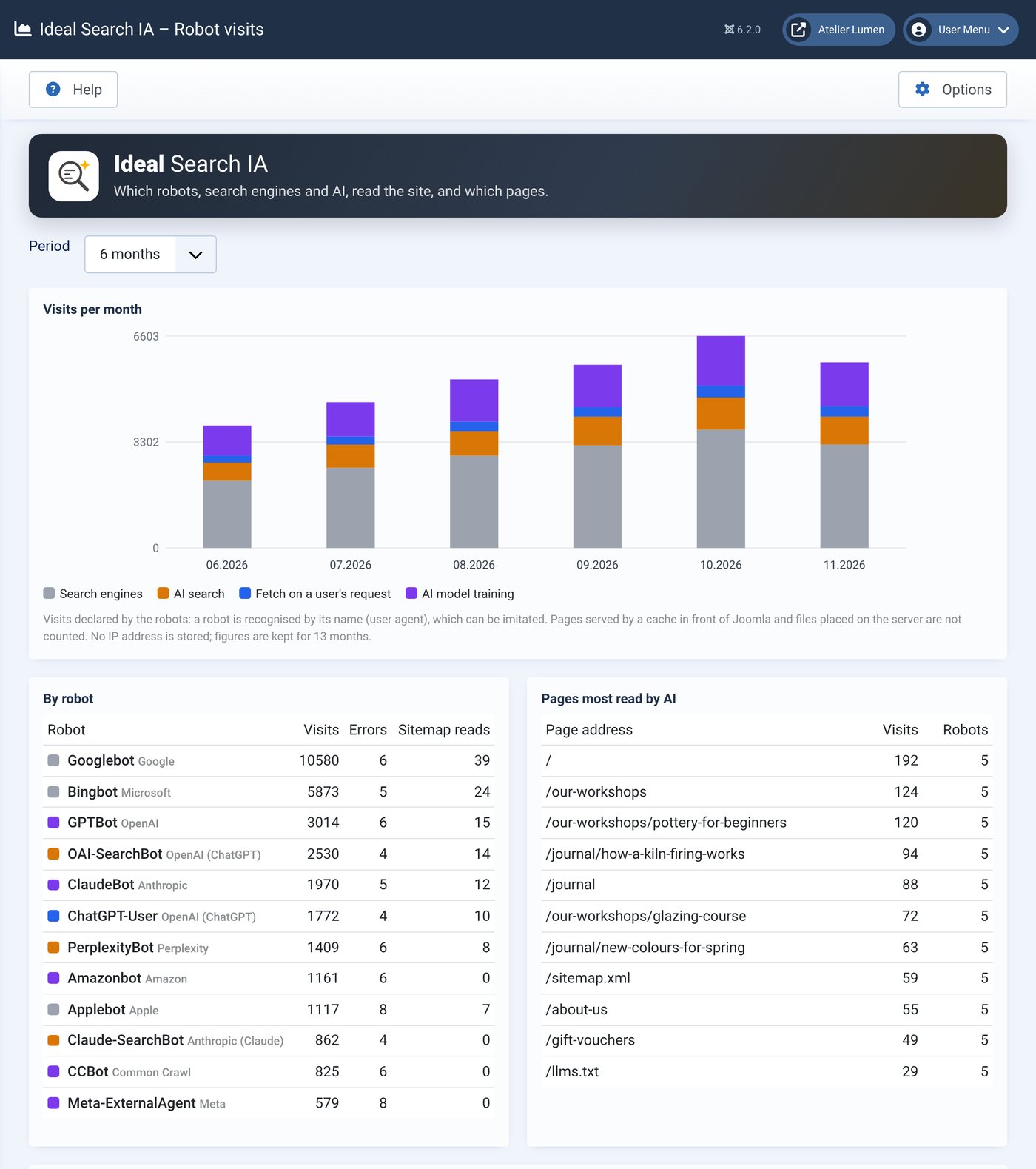
A robot is recognised by its name (user agent), which can be imitated. Pages served by a cache in front of Joomla and files placed on the server are not counted. No IP address is stored; figures are kept for 13 months.
JSON endpoint
An external application (for example maintenance-contract software) can read these statistics and the search status, read-only. Off until a token is created (Create a token). The token goes in the “Authorization: Bearer” header, never in the address; limit of 60 calls per hour.
E-mail alerts
Once a day, Ideal Search IA checks what would make the site invisible: site offline, “no index”, robots.txt blocking Google or Bing, sitemap no longer answering. An e-mail is sent when a problem appears, and another when it is solved. Settings in Options › Alerts (empty address = the site’s sender address). The Send a test e-mail button on the dashboard checks delivery.
Multilingual sites
With Falang, every translated and published page appears in its language, linked to the other versions by hreflang links (and x-default). Without Falang, Joomla’s associations are used. Titles, descriptions and llms.txt use Falang’s translations. The Language handling setting (Options › Sitemap) picks Falang automatically when it is installed.
On WordPress, Polylang and WPML are recognised the same way.
Moving from RSSEO! to Ideal Search IA
- Install Ideal Search IA without uninstalling RSSEO!.
- In Titles and sharing, click Import from RSSEO: titles, descriptions and sharing tags changed by hand are taken over, along with redirects (into Joomla’s Redirects). The import can be run again without creating duplicates and never replaces a page set in Ideal Search IA.
- Check a few pages, then disable or uninstall RSSEO!.
Security, permissions and privacy
- Every action checks the user’s permissions; settings require the component’s “Configure” permission (Options › Permissions).
- Server files (robots.txt, .htaccess) are only changed between marker lines, with a backup copy.
- No IP address is stored in the statistics; keys (Bing) are encrypted.
- The extension is built according to our security rules drawn from real attacks on Joomla extensions and checked with JED Checker.
About and support
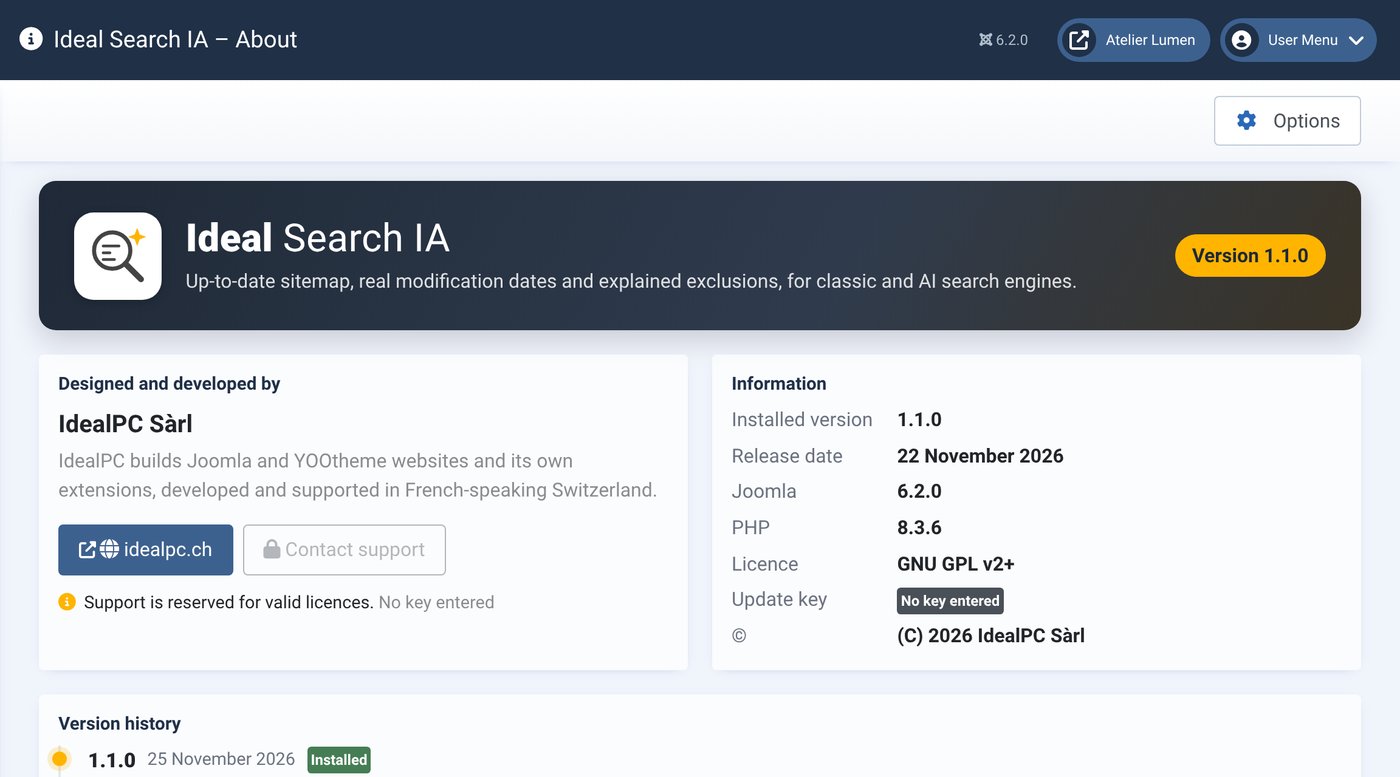
The About page shows the installed version, the licence key status and the version history. The Contact support button is active with a valid licence; you can also write to
Uninstalling
Uninstall the Ideal Search IA package in System › Manage › Extensions. Tables, cache and the robots.txt block are removed; redirects you created stay in Joomla’s Redirects component. Remember to provide another sitemap if you stop using it.